
Want to stop wasting hours on manual sales work and finally let your outreach run on autopilot?
This complete guide to Apollo.io Automation Workflows shows you exactly how to build smart, reliable automations that actually save time and move leads forward ⚡
Inside this tutorial, you’ll learn how to turn everyday sales actions like assigning leads, triggering follow-ups, and updating records into automated workflows that work for you 24/7 🤖.
No confusing jargon, no over-engineering just clear steps you can apply immediately.
If you’re ready to build your first Apollo.io workflow the right way, avoid common setup mistakes, and create a system that scales with your sales process, you’re in the right place.
Let’s get started and put automation to work for you 🔥
📌 What Is Apollo.io Automation Workflow? 🤖
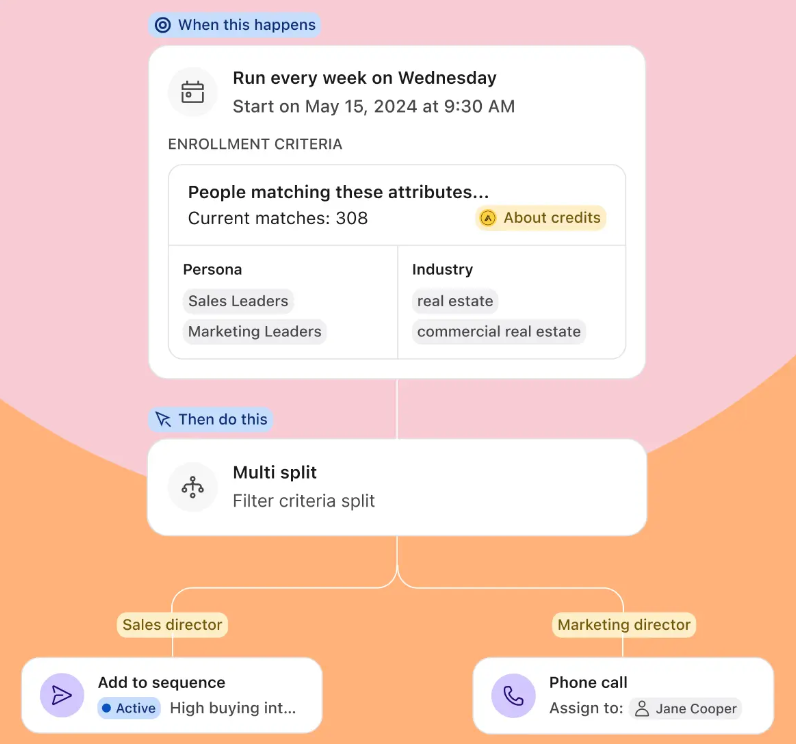
Apollo.io Workflows are no-code automation tools that replace manual sales tasks with intelligent, multi-step processes. Using a visual drag-and-drop builder, they connect triggers (events like “new lead added”) → conditions (filters like “company revenue >$10M”) → actions (tasks like “assign to AE + Slack alert + CRM sync”).
1. Core 3-Step Architecture
NEW LEAD → [VP Title? US Location?] → Assign AE + Notify Team
↓
[12 Triggers × 20 Conditions × 30 Actions = 7,200+ combinations]
Key Components:
- Triggers (12 types): List adds, email replies, sequence starts, CSV uploads, webhook events
- Conditions (20+ filters): Title, industry, employee count, custom fields, lead score >75
- Actions (30+ options): Enroll sequence, update CRM, Slack notify, enrich data, create tasks
2. Workflows vs Other Tools
| Feature | Apollo Workflows | Sequences | Zapier | HubSpot |
|---|---|---|---|---|
| Builder | Visual drag-drop ✅ | Linear ❌ | Multi-step ✅ | Basic ✅ |
| Data Source | 275M contacts ✅ | 275M ✅ | External only ❌ | HubSpot only |
| AI Features | Auto-enrich + scoring ✅ | None ❌ | Add-on ❌ | Limited ✅ |
| Setup | 2 min ✅ | 5 min | 15 min | 10 min |
| Pricing | $99/mo ✅ | $99/mo | $29/mo+ | $800/mo |
3. 2026 Updates ✨
- AI Research: Auto-finds job changes, funding news before routing
- Plays: Reusable templates (e.g., “VP Outreach Play” = 5 emails + LinkedIn + call)
- Power-ups: Slack AI summaries, CRM opportunity scoring
Real Scale: 50-person sales team processes 2,000 monthly form submissions:
- Trigger: Form submit detected
- Condition: ARR >$50M OR Series B funded
- Action: Enterprise AE assignment + Slack alert + Salesforce opportunity
Result: 68% faster deal velocity, 42% higher connect rates
- Why It Exists: Reps waste 27 hours/week on manual lead work. Workflows automate 80% instantly, from 10 to 10,000 leads without breaking.
- Compliance: CAN-SPAM, GDPR, CCPA built-in. Free tier = 50 emails/day + unlimited internal actions (Slack, CRM).
- Pro Tip: Start with Apollo’s 12 pre-built templates (Lead Router, Deal Re-engagement, QBR Prep) – clone → customize → deploy in 60 seconds.
To maximize Apollo.io’s automation power, integrating with tools like ShipChain SCM can enhance your outreach to target the right decision-makers more effectively.
2. Why Sales & Marketing Teams Use Apollo Workflows
Let me be real with you automation for the sake of automation is stupid. I’ve seen companies automate themselves into oblivion, sending robotic messages that nobody reads.
But when done RIGHT, Apollo workflows solve actual business problems. Here’s why smart teams use them:
🎯 1. Time Savings (The Obvious One)
Let’s do some quick math:
- Average time to research and email one lead: 5 minutes
- If you contact 100 leads per week: 500 minutes (8.3 hours)
- With workflows: 30 minutes to set up, then automatic
That’s 8 hours back in your week. What could you do with an extra day?
💰 2. Consistency at Scale
Human beings are inconsistent. We forget. We get tired. We take vacations.
Workflows don’t.
When you nail a workflow that converts at 15%, it will keep converting at 15% whether you’re processing 10 leads or 10,000 leads. That’s the power of systematization.
🔥 3. Faster Response Times
Here’s a stat that should scare you: leads that are contacted within 5 minutes are 21x more likely to convert than those contacted after 30 minutes.
With workflows, you can:
- Auto-respond to form submissions instantly
- Alert sales reps the moment a hot lead takes action
- Send follow-ups at optimal times automatically
📊 4. Better Lead Management
Ever had a hot lead fall through the cracks? Yeah, me too. It sucks. 😤
Workflows prevent this by:
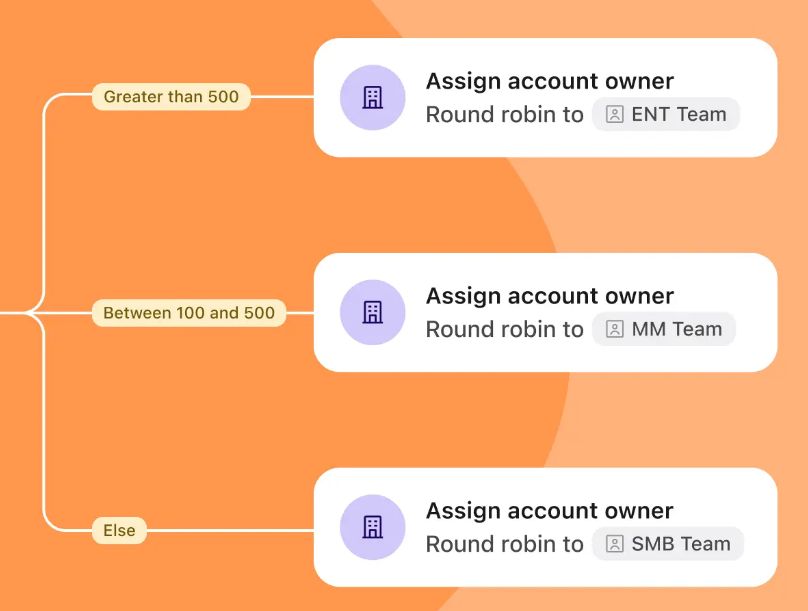
- Automatically assigning leads to the right rep based on territory, industry, or deal size
- Moving leads through pipeline stages
- Flagging inactive leads for re-engagement
- Updating lead scores based on behavior
🤝 5. Multi-Channel Coordination
Modern buyers don’t respond to just email anymore. They want:
- LinkedIn messages
- Phone calls
- Personalized videos
- Retargeting ads
Workflows can orchestrate all of this across channels without you having to remember which lead needs what touchpoint when.
💡 6. Data-Driven Optimization
Here’s something most people don’t think about: workflows give you clean, comparable data.
When you A/B test manually, variables change (your mood, the time of day, the weather). With workflows, the ONLY thing that changes is what you’re testing. This means you can:
- Test subject lines accurately
- Optimize send times
- Compare messaging strategies
- Make decisions based on real data, not gut feelings
🎁 7. Better Customer Experience
Counterintuitive, right? How does automation improve the human experience?
Simple: when your team isn’t buried in repetitive tasks, they can focus on high-value activities like:
- Having meaningful conversations
- Solving complex problems
- Building actual relationships
Automation handles the routine stuff. Humans handle the important stuff.
3. How Apollo.io Workflows Actually Work (Simple Flow)
Okay, enough theory. Let’s talk about how these things actually operate under the hood.
Every Apollo workflow has three core components that work together like a well-oiled machine:
🔹The Three Pillars: Trigger → Condition → Action
Think of workflows like a smart thermostat in your home:
TRIGGER = Temperature drops below 68°F
CONDITION = Is anyone home?
ACTION = If yes, turn on heat. If no, stay off.
In Apollo, it works the same way:
1. 🎬 TRIGGER (The Starting Point)
This is the event that kicks off your workflow. Common triggers include:
Contact-based triggers:
- Contact added to specific list
- Contact stage changed
- Contact tagged with specific label
- Contact opened/clicked email
- Contact visited your website
- Contact filled out a form
Time-based triggers:
- Specific date reached
- X days after contact creation
- Scheduled daily/weekly runs
Account-based triggers:
- Account created or updated
- Account moved to new stage
- Account assigned to team member
Real example:
Trigger = “Contact is added to ‘Q1 Outbound Campaign’ list” 📋
2. ⚙️ CONDITION (The Decision Point)
Conditions are the “if/then” logic that makes workflows smart instead of dumb.
Without conditions, workflows would treat everyone the same (boring and ineffective).
With conditions, you can create different paths based on:
Demographic conditions:
- Job title contains “Director” or “VP”
- Company size is 50-500 employees
- Industry is SaaS, Technology, or Finance
- Location is United States or Canada
Behavioral conditions:
- Email open rate > 30%
- Clicked specific link in email
- Has visited pricing page
- Has not responded in 7 days
Data conditions:
- Has valid email (not bounced)
- Has phone number
- Has LinkedIn profile URL
- Lead score > 70
Real example:
Condition = “IF job title contains ‘Marketing’ AND company size > 100 employees” ✅
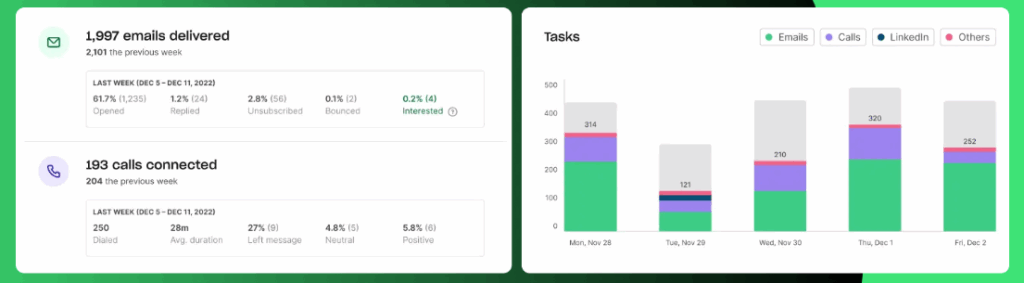
3. 🚀 ACTION (The Execution)
This is what actually happens when the trigger fires and conditions are met.
Communication actions:
- Send personalized email
- Add to sequence
- Send LinkedIn connection request
- Create task for sales rep to call
- Send SMS (with integrations)
Data management actions:
- Update contact fields
- Change contact stage
- Add/remove tags
- Update lead score
- Create note
CRM actions (with integrations):
- Create/update Salesforce record
- Add to HubSpot list
- Update deal in Pipedrive
- Log activity in CRM
Team actions:
- Assign contact to specific rep
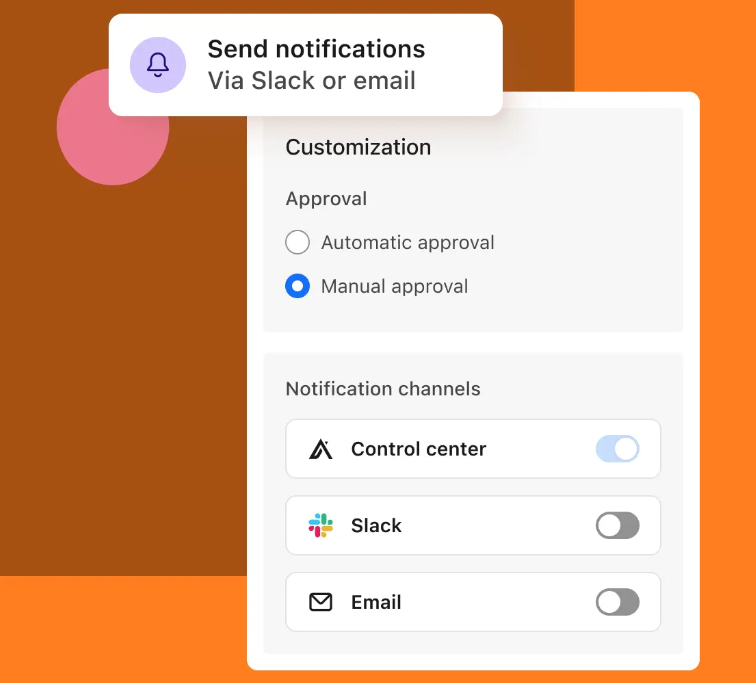
- Create notification/alert
- Add to shared list
- Trigger webhook to external system
Real example:
Action = “Send Email Template: ‘Marketing Director Intro V2’ + Create Task: ‘Follow up call in 3 days'” 📧
🔹Putting It All Together: A Real Workflow
Let me show you a complete workflow so this makes sense:
Scenario: You want to automatically engage new inbound leads
TRIGGER:
Contact fills out “Demo Request” form on your website
CONDITION 1:
IF company size > 50 employees
→ Go to Path A (Enterprise)
ELSE
→ Go to Path B (SMB)
Path A Actions (Enterprise):
- Send email: “Thanks for your interest – Enterprise Demo”
- Assign to: Enterprise Sales Team (round-robin)
- Create task: “Call within 30 minutes” (high priority)
- Add tag: “Hot Lead – Enterprise”
- Update lead score: +50 points
- Wait 2 hours
- IF task not completed → Send Slack alert to sales manager
Path B Actions (SMB):
- Send email: “Thanks for your interest – Quick Setup”
- Add to sequence: “SMB Nurture – 14 days”
- Assign to: SMB Sales Team (round-robin)
- Create task: “Send personalized video” (medium priority)
- Add tag: “Warm Lead – SMB”
- Update lead score: +30 points
See how it branches? That’s the power of conditions. One workflow, but completely different experiences based on who the lead is. 🌳
🔹The Flow Continues…
Workflows don’t have to end after one action. You can chain them:
- Wait 3 days
- Check: Did they open the email?
- IF yes → Send follow-up email with case study
- IF no → Wait 2 more days → Try different subject line
- IF still no response after 7 days → Remove from active outreach, add to monthly newsletter list
This creates intelligent, adaptive automation that feels personalized even though it’s running on autopilot.
4️⃣ What You Need Before Setting Up Your First Apollo.io Workflow 🧩
Before you start building automation, it’s important to understand that Apollo.io workflows don’t work in isolation.
They depend entirely on how well your sales process, data structure, and internal rules are set up. If these basics are unclear, automation won’t fix the problem it will simply repeat it faster.
You should begin with a clearly defined sales flow so Apollo knows what should happen when a new lead enters your system.
Your contact data must be clean and consistent, especially fields like country, job title, lead status, and ownership, because workflows rely on these fields to make decisions.
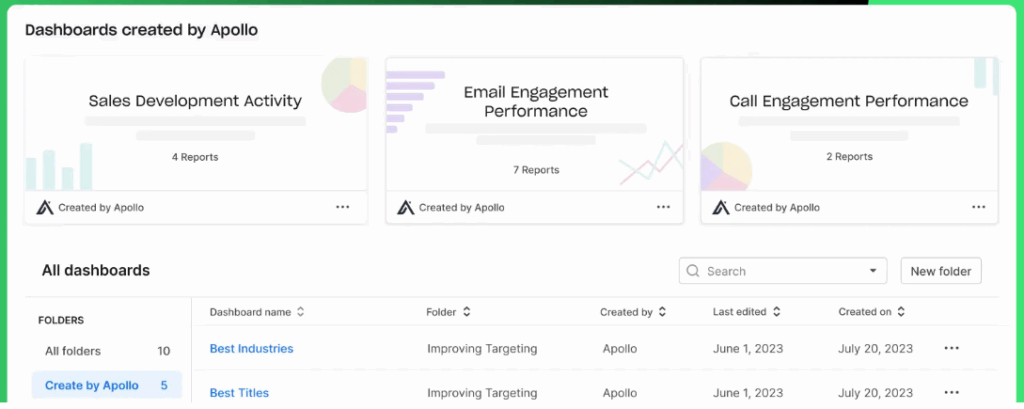
At least one email sequence should already be created and tested, since workflows trigger sequences rather than sending emails directly.
Equally important is having clear ownership rules so every lead is automatically assigned to the right person.
Without this clarity, leads can be ignored, contacted twice, or lost in the system. Finally, it’s always best to test your workflows using sample or internal contacts before activating them for real prospects.
Taking these preparation steps ensures your first workflow runs smoothly, avoids common automation mistakes, and delivers real value instead of operational confusion.
5️⃣ Step-by-Step: Create Your First Apollo.io Workflow ⚙️
Creating your first workflow in Apollo.io is much easier than most people expect. The key is to start small and focus on one clear outcome instead of trying to automate everything at once.
This section walks you through the basic workflow setup that most teams use as their first automation.
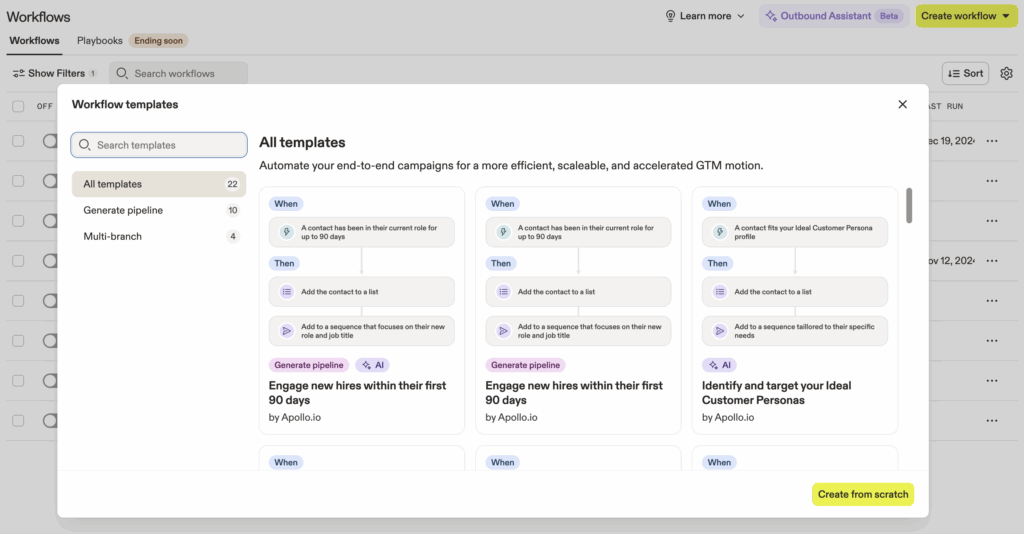
Step 1: Open the Workflow Builder
Log in to your Apollo account and go to Automation → Workflows.
Click on Create Workflow to open the workflow builder.
This is where all triggers, conditions, and actions are configured.
Step 2: Choose a Trigger
The trigger decides when your workflow should start.
A beginner-friendly trigger is:
“Contact added to a list”
This works well because lists are easy to control and test.
Step 3: Add Conditions (Optional but Recommended)
Conditions help Apollo decide which leads should continue in the workflow.
For example, you might want the workflow to run only if the lead:
- Belongs to a specific country
- Has a certain job title
- Matches your ideal customer profile
Adding conditions prevents automation from firing on the wrong leads.
Step 4: Select the Action
Actions define what Apollo will do automatically once the trigger and conditions are met.
Common first actions include:
- Adding the lead to an email sequence
- Assigning the lead to a sales rep
- Creating a follow-up task
You can add more than one action, but for your first workflow, keeping it simple is best.
Step 5: Review and Activate the Workflow
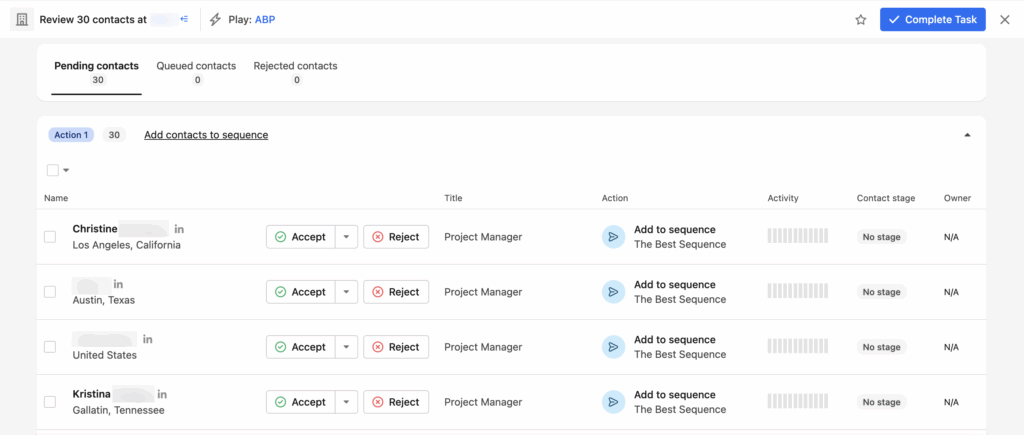
Before turning the workflow on, review each step carefully.
Check:
- Is the trigger correct?
- Are conditions too broad or too strict?
- Will the action affect real leads correctly?
Once reviewed, activate the workflow. From this point on, Apollo will run it automatically in the background 🤖.
6️⃣ Triggers, Conditions & Actions (Explained With Examples) 🔁
To use Apollo.io workflows effectively, you must clearly understand these three building blocks. Every automation you create is simply a combination of these elements.
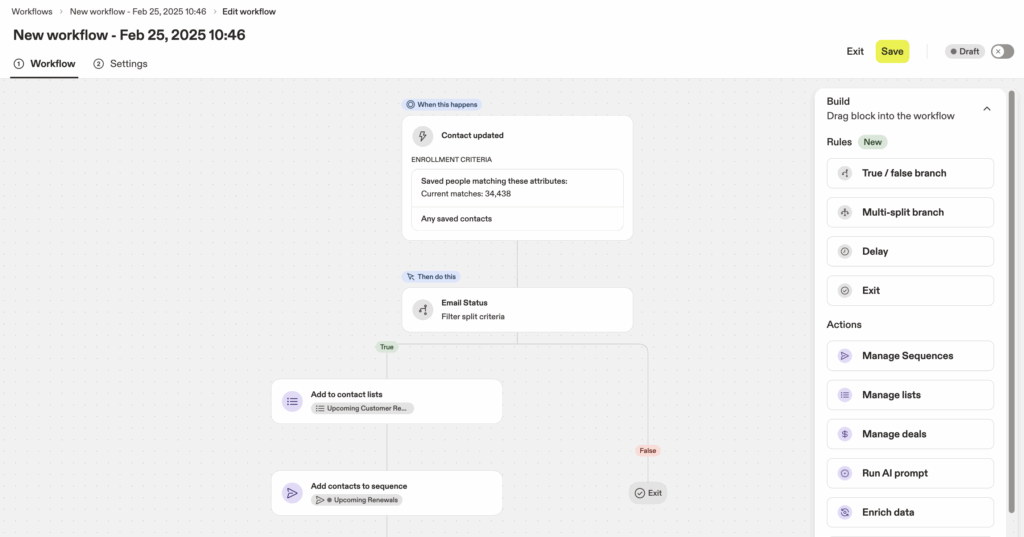
🔹 Triggers – What Starts the Workflow
Triggers define when the workflow should run. Without a trigger, nothing happens.
Common triggers used in real workflows:
- A contact is added to a list
- A contact is created
- A field value changes
- A prospect replies to an email
Example:
When a contact is added to the “Inbound Leads” list, the workflow starts immediately.
🔹 Conditions – Who Qualifies for Automation
Conditions act as filters that control which contacts continue through the workflow.
They are used to avoid running automation on the wrong leads.
Examples of conditions:
- Country equals United States
- Job title contains “Founder”
- Company size is greater than 50 employees
Example:
Run the workflow only if the lead is from the US and works in a decision-making role.
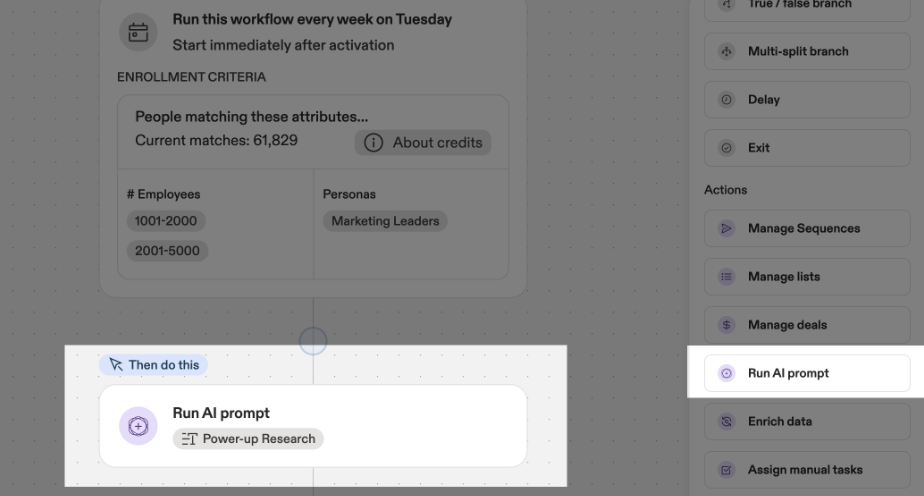
🔹 Actions – What Apollo Does Automatically
Actions are the tasks Apollo performs after the trigger and conditions are met.
Common actions include:
- Adding a contact to an email sequence
- Removing a contact from a sequence
- Assigning a lead owner
- Creating a follow-up task
- Updating a contact field
Example:
Add the lead to a welcome sequence and assign it to a sales rep.
🔑 How These Three Work Together
A simple real-world workflow looks like this:
When a new lead is added → check if they match your criteria → automatically start outreach and assign ownership.
Once you understand this flow, building and modifying workflows becomes straightforward and predictable.
7️⃣ High-Impact Apollo Workflow Use Cases 🚀
Automation only matters when it solves real sales problems. Below are the most effective and commonly used Apollo.io workflow use cases that actually improve lead management and sales efficiency.
🔹 Inbound Lead Follow-Up Automation
When a new inbound lead enters your system, speed is critical. A workflow can instantly enroll the lead into an intro sequence, assign the correct sales rep, and create a follow-up task. This ensures no inbound lead ever waits for manual action.
🔹 Outbound Lead Enrollment
For outbound campaigns, workflows can automatically add selected leads to cold email sequences based on lists or filters. This removes the need to manually enroll contacts and keeps outreach consistent across campaigns.
🔹 Reply-Based Automation
When a prospect replies to an email, workflows can immediately remove them from sequences and notify the assigned rep. This prevents over-emailing and ensures replies are handled by humans at the right time.
🔹 Lead Routing by Region or Role
Workflows can route leads based on country, region, company size, or job title. For example, enterprise leads can go to senior reps while SMB leads are handled by junior reps, improving both response quality and close rates.
🔹 CRM & Data Hygiene Automation
Sales data becomes outdated quickly. Workflows can automatically update lead statuses, move lifecycle stages, and keep CRM records clean without relying on reps to do it manually.
8️⃣ Workflow Automation Mistakes to Avoid in Apollo.io ⚠️
Automation can save time or silently create chaos. Most problems with Apollo.io workflows don’t come from the tool, but from how people use it. Avoiding these mistakes will protect your sales process from breaking.
🔹 Over-Automating Everything
Trying to automate every action from day one is a common trap. Too many workflows firing at once can confuse reps, duplicate actions, and make it hard to track what’s actually happening. Start with one clear workflow and expand gradually.
🔹 Using Broad Triggers Without Conditions
Triggers without proper conditions cause workflows to run on the wrong leads. This often results in contacts being added to irrelevant sequences or assigned incorrectly. Conditions exist to protect your automation use them.
🔹 Ignoring Data Quality
Workflows rely entirely on your data. If fields like country, job title, or lead status are inconsistent or empty, automation decisions will be wrong. Bad data doesn’t just slow things down it breaks logic.
🔹 No Exit or Stop Logic
Many teams forget to remove contacts from sequences after a reply or stage change. This leads to over-emailing and poor prospect experience. Every workflow should consider when automation should stop.
🔹 Skipping Testing Before Activation
Turning workflows live without testing is risky. Always test using internal or dummy contacts first. One small logic error can affect hundreds of real leads within minutes.
9️⃣ How to Track & Improve Workflow Performance 📊
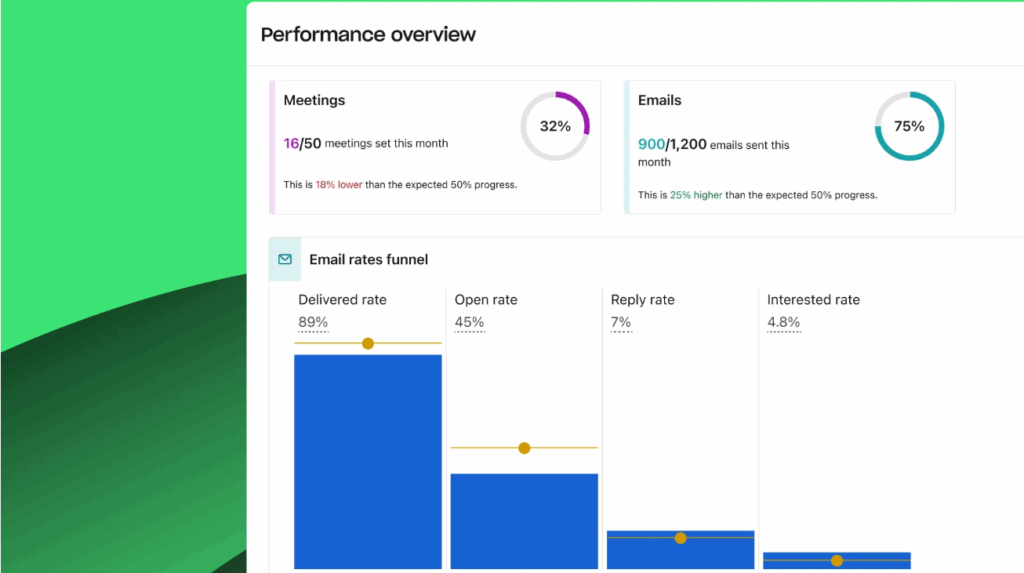
To get real results from Apollo.io workflows, you must regularly review how they perform. Automation that isn’t monitored can quietly hurt your sales process.
- Check workflow activity to see how often workflows run and whether actions trigger as expected
- Monitor lead responses to confirm automation is improving replies, meetings, or conversions
- Review task completion to ensure assigned reps are actually following up
- Audit triggers and conditions to remove unnecessary or overly broad logic
- Simplify workflows if too many actions are firing together
🔑 Key Takeaway
The best-performing workflows are reviewed and adjusted over time. Small optimizations lead to cleaner data, faster follow-ups, and more predictable sales results.
🔟 Final Verdict: Who Should Use Apollo.io Workflows (and Who Shouldn’t) ✅❌
Apollo.io workflows are powerful, but they’re not for everyone. Their value depends on how structured your sales process already is.
👍 Apollo Workflows Are a Great Fit If You:
- Handle inbound or outbound leads at scale
- Want faster, more consistent follow-ups
- Spend too much time on manual sales admin
- Need clean, automated CRM updates
- Want predictable and repeatable sales processes
👎 Apollo Workflows May Not Be Ideal If You:
- Don’t have a defined sales process yet
- Work with very small or irregular lead volumes
- Have poor or inconsistent lead data
- Change sales rules and ownership frequently
🔑 Final Takeaway
Apollo.io workflows don’t magically increase sales but when set up correctly, they remove friction, reduce human error, and help teams scale without chaos. If your sales foundation is ready, workflow automation becomes a serious competitive advantage 🚀.
“RELATED ARTICLE “
❓ Frequently Asked Questions (FAQs)
Q1. Is Apollo.io workflow automation difficult to set up?
No. Basic workflows are easy to set up and can be created in a few minutes with simple triggers and actions.
Q2. Can Apollo workflows send emails automatically?
Workflows don’t send emails directly, but they trigger email sequences that handle outreach automatically.
Q3. Can I pause or edit a workflow after it’s live?
Yes. Apollo allows you to pause, edit, or update workflows at any time without affecting existing data.
Q4. Are Apollo.io workflows useful for small sales teams?
Yes. Workflows are especially useful for small teams because they reduce manual work and ensure no lead is missed.

Hi, I’m Nelson 👋 a content writer and reviewer with 6+ years of experience writing blogs, coupon guides, and detailed website reviews. I have a strong background in continuous learning and research, which helps me analyze platforms, tools, and websites in a structured and practical way 📚.
My content is based on real research, hands-on analysis, and accuracy, with a clear focus on simplicity, transparency, and user-first value. I aim to break down complex information into content that’s easy to understand and genuinely helpful for readers ✅.